Download and install our award-winning products
Discover the latest versions of our products to purchase or obtain a free trial.


Complete privacy, identity and device protection for individuals.
Complete privacy, identity and device protection for up to 6 family members.
Basic device and identity protection for individuals
Complete privacy, identity and device protection for individuals.
Complete privacy, identity and device protection for up to 6 family members.
McAfee Total Protection Plans
Basic device and identity protection for individuals
Identity Theft Coverage & Restoration
This site in other countries/regions:
ASIA PACIFIC
EUROPE
Discover the latest versions of our products to purchase or obtain a free trial.

McAfee Total Protection is easy to use, Antivirus and VPN for PC & Mobile devices. Your best bet to stay safer online.

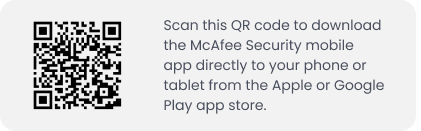
Protect up to five smartphones with email address monitoring with alerts for detected breaches and safe online browsing.




Identity monitoring that helps keep your personal info secure. 24/7 monitoring of your email addresses, bank accounts, and more.

McAfee WebAdvisor is your trust companion that helps keep you safe from threats while you search and browse the web.

Stay safe online. Use McAfee Safe Connect VPN to browse the web privately, safely, and securely.




Declutter and boost your PC performance with McAfee’s PC Optimizer. Our PC optimization software is designed to keep your system streamlined.

Unlimited expert help with everything from reducing digital clutter to resolving complex operating system issues.

McAfee provides strong parental controls to keep kids safe online, including website and search filtering.
EUROPE
This site in other countries/regions:
ASIA PACIFIC
EUROPE