Home
HomeWhat Your Wi-Fi Name Reveals About Your Security


You pull out your phone and open your Wi-Fi settings. A dozen network names pop up: “SmithFamily-WiFi,” “XfinityWifi,” “Starbucks_Free_WiFi,” “Apt12B-Lisa,” and “FBI-Surveillance-Van.” These seemingly harmless Wi-Fi names are called Service Set Identifiers (SSIDs), and they do more than help you find your network.
Each one is silently broadcasting information about the network behind it, including which internet provider or router brand powers it, who set it up, and whether the network might be easy to impersonate or exploit.
In this article, we will go into more depth about SSIDs, what they reveal about you, and some steps you can take to improve your home network security.
Key Takeaways
- Your SSID is visible to anyone nearby and can reveal personal details, router models, and network habits. It is neither a password nor a security feature.
- Default network names such as “NETGEAR23” or “xfinitywifi” signal that you may not have changed factory settings, making your network an attractive target for attackers.
- Evil twin attacks clone familiar SSIDs to trick devices into connecting, allowing criminals to intercept traffic, steal credentials, or inject malware.
- Simple changes can greatly reduce your exposure, even without technical expertise.
- Combining smart SSID choices with strong encryption, current router firmware, and security tools builds layered protection that works at home and on public networks.
What Is an SSID?
SSID stands for Service Set Identifier, or simply the name your router broadcasts so nearby devices can see and connect to your network. Your SSID can be up to 32 characters long and is automatically shared by your router with anyone within Wi-Fi range, whether or not they have your password.
Your neighbor scrolling through available networks on their phone right now can see your network name, just as you can see theirs. That visibility is essential for devices to find and join networks, but it also means your SSID is essentially a public billboard.
What SSID Does Not Do
Your SSID is not a password, and changing it to something clever or intimidating does not encrypt your traffic or secure your network. Wi-Fi security experts make this clear: the real protection comes from your WPA2 or WPA3 encryption standards and a strong, unique passphrase, not from the network name.
There’s also an impression that hiding your SSID makes it invisible to cybercriminals. However, consumer security guidance shows this approach really doesn’t work. Wi-Fi tools can still detect hidden networks from probe requests and management frames that your devices send when searching for saved networks. In fact, a hidden network may draw more attention from someone looking for targets, because it suggests the owner thinks they have something worth hiding.
What Your SSID Reveals About You
Your Wi-Fi name might seem like a small, personal choice, but it reveals more about you than you realize. It can quietly reveal clues about your identity, location, and even how secure your network is.
Personal Info in Network Names
Personalized SSIDs like “SmithFamilyWiFi,” “Apt12B-Lisa,” or “123MainSt-Network” feel friendly and make it easy to find your own network. But they also broadcast personal details, such as names, apartment numbers, or street addresses. Such Wi-Fi names can help stalkers and burglars confirm where you live or give social engineers specific details to craft a convincing phishing message.
Default Router and ISP Names
Using default names such as “NETGEARxx,” “linksys,” “TP-LINK-2.4G,” “xfinitywifi,” or “ATT-Home-xxxx” reveals the exact router brand or internet service provider behind your network. It also tells an attacker that you probably haven’t changed your router’s factory settings, including the default administrator password. Attackers can search public databases for known vulnerabilities in specific router models, or simply try common default credentials such as “admin/admin” or “admin/password” to gain full control of your network.
WiFi Names That Attract Attention
Some SSIDs are designed to get a reaction: “Virus-Free-WiFi,” “Free_Public_Internet,” “FBISurveillanceVan,” or “NSA-Monitoring.” Anything promising free or public access is often used by attackers as bait for evil twin attacks, because they know that people are more likely to connect to networks that sound open and accessible.
On the other hand, joke names referencing law enforcement or hackers can draw curious neighbors, visitors, or attackers to test whether the network is actually secure. Attackers, specifically, will test the encryption, router firmware, and whether defaults are still in place.
How Cybercriminals Exploit SSIDs
Evil Twin Attacks: Cloning SSIDs to Catch Your Devices
The most direct way SSIDs are weaponized is through an evil twin attack, where a criminal sets up a rogue access point and gives it the exact same SSID as a trusted network. It might be “Starbucks_WiFi,” “Airport_Free_WiFi,” or even your home network name if the attacker is nearby. The fake access point usually broadcasts a stronger signal than the real one, which makes nearby devices think it’s the better option and connect automatically.
Once your device is connected to the evil twin, the attacker can intercept everything you send and receive a man-in-the-middle attack. They can set up fake login pages that mimic real sites, such as your bank or email provider, and capture your credentials as you enter them. They can inject malware into unencrypted web traffic or even disable some of your network’s security warnings.
Device Auto-Join and Saved Networks
When you connect to a network, your device remembers the SSID and automatically reconnects the next time you’re in range. That feature saves you from repeatedly typing passwords. But every old public network you’ve joined will sit in your device’s memory, waiting to betray you the next time someone clones that SSID, because there is no reliable way to confirm that “FreeWifi” is the same one you connected to last month.
Public Wi-Fi and Fake Networks
Many people worry about public Wi-Fi security, yet only a few of us use a VPN or any extra protection. When you see three SSIDs that reference the airport or café you’re sitting in, you might choose the one that looks most official or matches the venue’s exact name. That intuition is exactly what evil twin attackers count on, as the familiar-looking network name triggers a mental shortcut in you.
How to Make Your SSID More Secure
This step-by-step guide walks you through quick actions you can take today to reduce what your network reveals and strengthen your overall protection.
Rename Your Home Wi-Fi Network with a Neutral Name
This quick 15-minute project immediately reduces what strangers can learn about you from your network name.
- Access your router settings. Open any web browser and type your router’s address in the address bar. You can find the address on your router or in the manual, usually 192.168.1.1 or 192.168.0.1. When prompted, enter the username and password. If you’ve never changed these, they’re usually “admin” for both, or printed on the router itself.
- Find your network name settings: Look for a section called “Wireless,” “Wi-Fi Settings,” or something similar. The exact location varies by router brand, but you’re looking for where it shows your current SSID or network name.
- Choose a new, neutral name: Replace your current name with something neutral that doesn’t reveal personal information. Good examples include “HomeNetwork,” “MyWiFi2026,” “BlueNetwork.” Avoid using your family name, address, apartment number, or router brand. Make it memorable enough for your household but meaningless to neighbors and passersby.
- Use WPA3 or WPA2 encryption and a strong password. WPA3 is the latest and strongest Wi-Fi security standard for home networks, though WPA2 remains secure when paired with a strong password. Most modern routers let you choose your encryption type in the wireless security settings. Avoid older standards like WEP, which can be hacked in minutes.
- Set up a guest network: If your router offers this option, create a separate guest network with its own name and password. Call it something simple like “Guest” or “Visitors.” Share this network with guests to keep your personal devices, files, and smart home gadgets separate from your guests’ devices.
- Save and reconnect: Save your changes, wait for your router to restart, then reconnect all your devices using the new network name and your password. While you’re in the router settings, also change the router admin password if it’s still the factory default. Write it down and keep it somewhere safe.
Use Public Wi-Fi Safely
When you’re traveling or working from a café, you can make smarter decisions about which networks to trust and how to protect yourself once connected.
- Ask staff for the exact network name before connecting. If you see multiple public Wi-Fi networks with similar names, assume at least one might be fake. Before you connect, ask a staff member to confirm the exact name. Taking 30 seconds to verify can save you hours of cleanup if your passwords or payment information gets stolen.
- Be skeptical about free Wi-Fi: Typically, “FreeWiFi” or any network without a lock icon means there’s no encryption protecting your data. Anyone on that network can potentially see all your online activity. Even on the correct public network at a café or airport, you’re sharing that network with strangers whose devices or intentions you can’t verify.
-
Delete old public networks from your devices: Your phone and laptop remember every Wi-Fi network you’ve ever joined, even from last year. Each one is a potential security risk if a hacker creates a fake network with the same name. Spend 5 minutes per device doing this cleanup to prevent your devices from reconnecting to old networks and to prevent hackers from tricking them with fake evil twin networks.
Add Extra Device Protection
Changing your SSID is a great start, but it works best when combined with other simple security steps that protect you everywhere you connect.
- Install security software on all your devices: In addition to blocking viruses, a good security suite warns you when you connect to suspicious networks, blocks fake login pages, and helps prevent you from accidentally visiting malicious websites. This protection is valuable when you can’t guarantee the Wi-Fi network you just joined is legitimate.
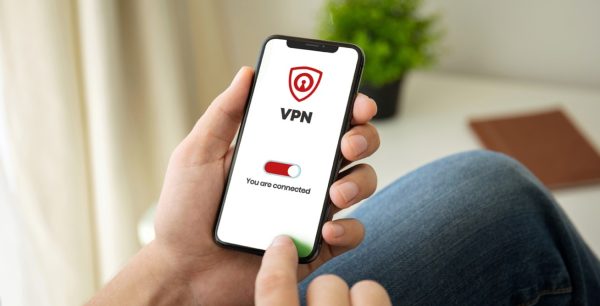
- Always use a VPN: A virtual private network (VPN) encrypts all your internet traffic, making it unreadable to hackers, even if you’re on a compromised network. Also, look for the padlock icon and HTTPS in your browser’s address bar, which adds protection. When possible, save sensitive tasks such as checking your bank account or accessing medical records for your home network or your phone’s cellular data.
- Keep everything updated: On your router, log in to the admin page every few months to check for firmware updates, or enable automatic updates if your router supports them. Do the same for your devices through the settings. These updates often fix security holes that could let attackers break in through your Wi-Fi connection.
- Change your router’s admin password: Your router has two passwords: one for the Wi-Fi, and another for the router’s settings page. That second password is often still the factory default, like “admin” or “password.” Change it to something long and unique, and save it in a secure place or password manager.
No single measure makes you completely safe, but combined, these steps make it much harder for attackers to succeed.
Final Thoughts
Your home network’s SSID, or Wi-Fi name, can be a security risk because it’s a public-facing part of your digital life that can reveal far more than you intended. A network name that broadcasts your family name, apartment number, or router brand helps attackers build profiles, identify easy targets, and launch convincing evil twin attacks. Choosing a sensible SSID is part of protecting your personal information and privacy.
Select a neutral SSID that doesn’t reveal personal information, change your router’s factory defaults, and separate guest and smart home traffic onto dedicated networks. It takes only 15 minutes to configure your router, rename your network, and set up your settings for a more secure setup.
When you layer those habits with up-to-date routers, strong WPA2 or WPA3 encryption, and modern security tools like McAfee+, Wi-Fi monitoring, secure VPN, and real-time antivirus, you build a defense that adapts to the networks you’re on and the devices you carry.
These small habits, practiced consistently, meaningfully reduce your exposure to the most common Wi-Fi-based attacks.
Quick Links

Introducing McAfee+
Identity theft protection and privacy for your digital life
Download McAfee+ Now